
...
- Log on to the server side router (192.168.22.1)
- Select VPN from the left-hand menu and click on VPN Server tab and click on OpenVPN switch

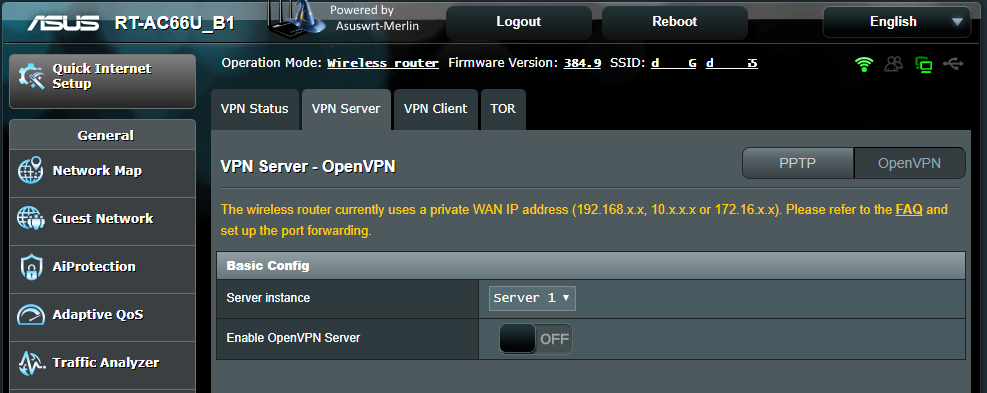
You can setup two VPN server configuration. We will now setup the Server 1 configuration - Flip Enable OpenVPN Server switch to ON position (will change to green)
You are now in General settings section.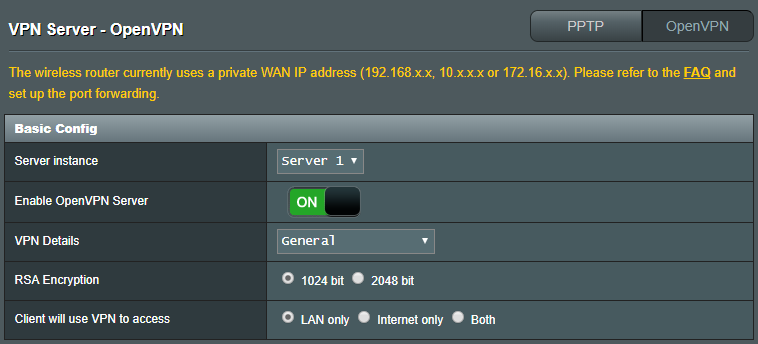
- Tick the LAN only radio button
- Add some user/password in the table below by entering username and password into text fields and click on the plus button
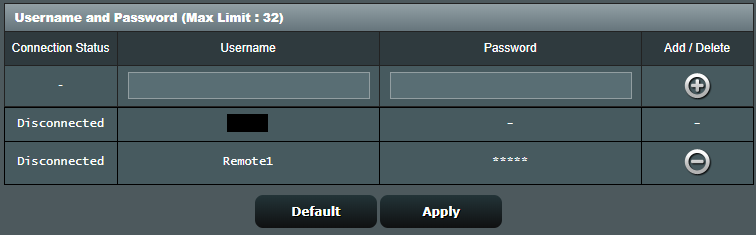
- Then hit Apply, this will take some time
- Select Advanced Settings option in VPN Details dropdown box
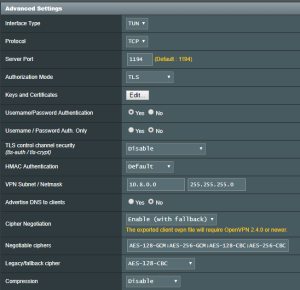
- Set following parameters to:
- Interface Type: TUN (routed networks)
- Protocol: TCP (do not try UDP, will not work afterwards wit site2site modifications!)
- Username/Password Authentication: Yes (for now, we will use simple authentication, reconfiguration for use of cert logins will be discussed in another article)
- VPN Subnet/Netmask: is irrelevant, leave the default one (except when you're configuring more OpenVPN servers and/or clients, ensure each has it's own IP range!)
- Advertise DNS to clients: No
- Compression: Disable (enabling has for sure impact to router utilization and transfer speed – not tested yet)
- At Manage Client-Specific Options select Yes – you will get additional input fields
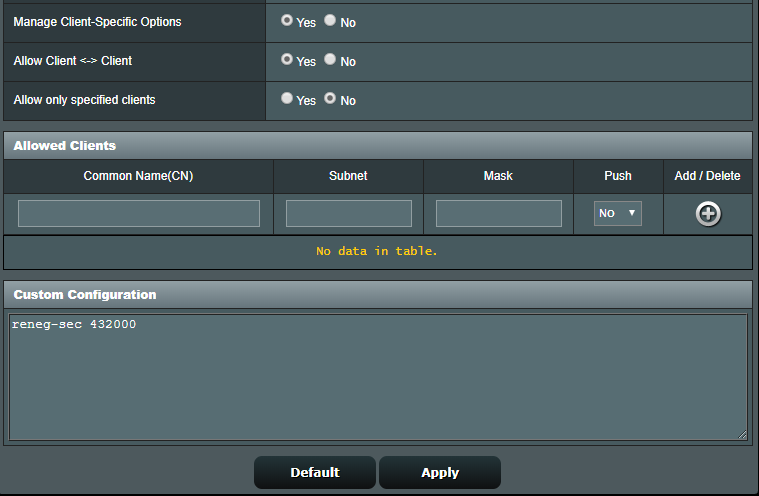
- Select Yes at the Allow Client <-> Client option
- In the Custom Configuration enter following recommended parameter
reneg-sec 432000
- Hit the Apply button – will take some time.
If everything is fine (no fatalities), you should get the General VPN Details page and the Enable OpenVPN Server should be in ON position and green.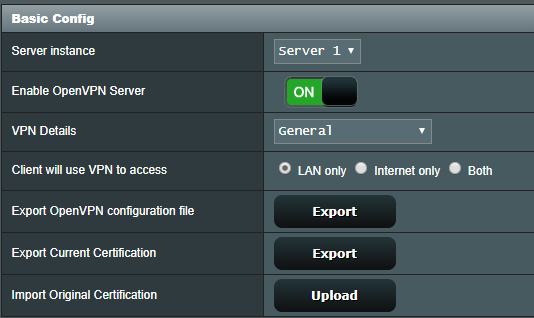
Now, you have some new buttons available, hit the first Export button (Export OpenVPN configuration file) – one file named
...
“
client1.
...
ovpn” will be downloaded- Open the file
...
- in text
...
- editor and check the first lines: for tun, tcp-client options and the correct DDNS name of the server-side router
client
dev tun
proto tcp-client
remote myprimarysite.asuscomm.com 1194
Configure client side router
Log on to the client-side router (192.168.33.1)
Select VPN from the left-hand menu and click on VPN Client tab and click on OpenVPN switch
...